Admin
Role
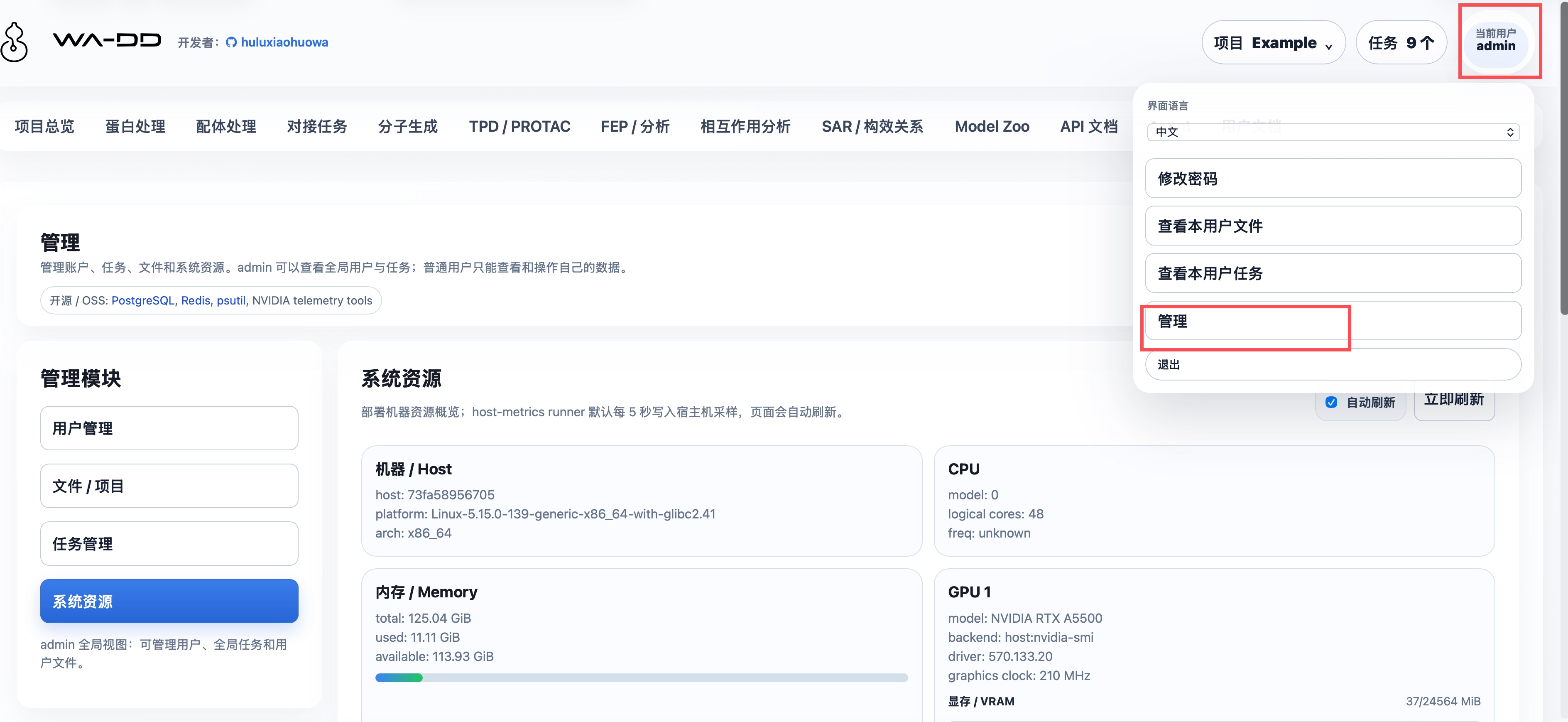
The admin page is opened from the "Current user" menu in the top-right corner; it is no longer shown as a top module navigation button. The same user menu also contains interface language, password change, current-user files, current-user jobs, and logout. The admin page still manages users, project files, global jobs, and host resources. Standard users can access only their own projects, assets, and jobs.
Implemented features
User management
- View all registered users along with their approval status and roles.
- Review pending registration requests.
- Change the password of a specific user.
- View the project, asset, asset file, and job summary of a specific user.
- Delete a user; the system will stop and delete that user's jobs, projects, assets, and persistent files. The currently logged-in administrator account cannot be deleted.
Files and projects
- View projects, assets, and asset files per user.
- Download asset files; assets can still be returned to project workflows as downstream inputs.
Job management
- View the global job list across all users, including the owning user, status, and output assets.
- View job events to locate queued, running, completed, failed, or cancelled states.
- Cancel jobs still running, clean up job runtime files, or delete job records and their associated outputs.
System resources
- View host name, operating system, architecture, and CPU logical threads.
- View memory, mounted disks, and their used/available capacity.
- View GPU model, backend, driver, video memory, utilization, and power draw (when supported by hardware).
- The
host-metricsrunner samples the host every 5 seconds by default; the page supports auto-refresh and immediate refresh. - Supports x86 NVIDIA (
nvidia-smi), Jetson Thor (tegrastats/sysfs), and ROCm (rocm-smi) metric sources.
Workflow
- After logging in as an administrator, open the top-right user menu, then click "Admin".
- In "User management", review accounts, change passwords, or open a user's data summary.
- In "Files / Projects", inspect project assets and files, and download files as needed.
- In "Job management", view global jobs and events; only perform cancel, clean-up, or delete when truly necessary.
- In "System resources", enable auto-refresh or click "Refresh now" to observe CPU, memory, disk, and GPU resources.
Inputs and outputs
- Inputs: administrator login credentials, and user or job identifiers.
- Outputs: user status, user project/asset summaries, the global
JobOutlist, job events, and CPU, memory, GPU, disk, and architecture metrics.
API / Automation
GET /api/v1/admin/users
POST /api/v1/admin/users/{username}/approve
POST /api/v1/admin/users/{username}/password
GET /api/v1/admin/users/{username}/summary
DELETE /api/v1/admin/users/{username}
GET /api/v1/admin/jobs
POST /api/v1/admin/jobs/{job_id}/cancel
GET /api/v1/admin/jobs/{job_id}/events
POST /api/v1/admin/jobs/{job_id}/cleanup
DELETE /api/v1/admin/jobs/{job_id}
GET /api/v1/admin/system
Deleting a user cascades to stop and delete that user's jobs, projects, assets, and persistent files. Canceling, cleaning up, and deleting jobs affects results that other users are currently using or about to reuse; confirm the target jobs and output assets before performing these actions.